How to Remove an Object or Person from a Photo in Photoshop
A tourist walks into your landscape. A trash can sits in the corner of a product shot. A boat crosses the one patch of water you wanted empty. Removing things like these is one of the most common jobs in Photoshop, and the right tool depends on one question: how big is the object compared with what surrounds it?
Small objects on a simple background, such as a boat on open water, a bird in the sky or a spot on a wall, take a single stroke with the Spot Healing Brush. Larger objects, such as a person, need a selection and Content-Aware Fill, followed by a little cleanup with the Clone Stamp wherever straight lines pass behind the object. This tutorial walks through both on two real photos.
The screenshots in this tutorial were taken in Photopea, a free browser-based editor whose tools and shortcuts work much like Photoshop's. Demo photos by Isaak Dury and Alejandro Escamilla on Unsplash.
Method 1: Spot Healing Brush for small objects
Step 1: Add an empty layer and sample all layers
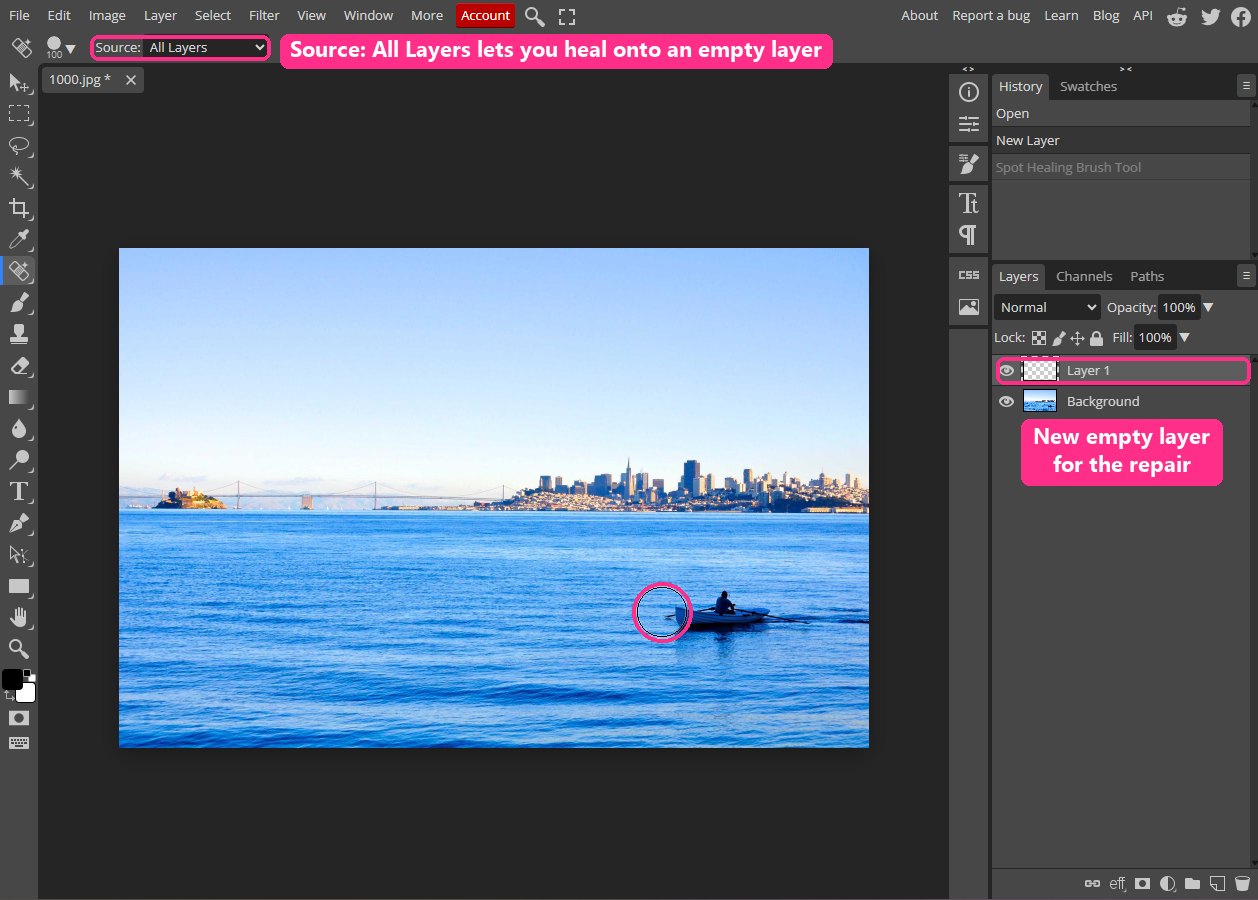
Open the photo and click the Create a new layer button at the bottom of the Layers panel. Select the Spot Healing Brush (press J; it shares a slot with the Healing Brush, Patch Tool and Remove Tool). In the options bar, set Type to Content-Aware and tick Sample All Layers.
Working on an empty layer keeps the original photo untouched. If a repair goes wrong, you erase part of the repair layer instead of undoing a whole series of strokes.
Using Photopea? The same setting is the Source menu in the options bar. Choose All Layers, as shown above.
Step 2: Paint one stroke over the object
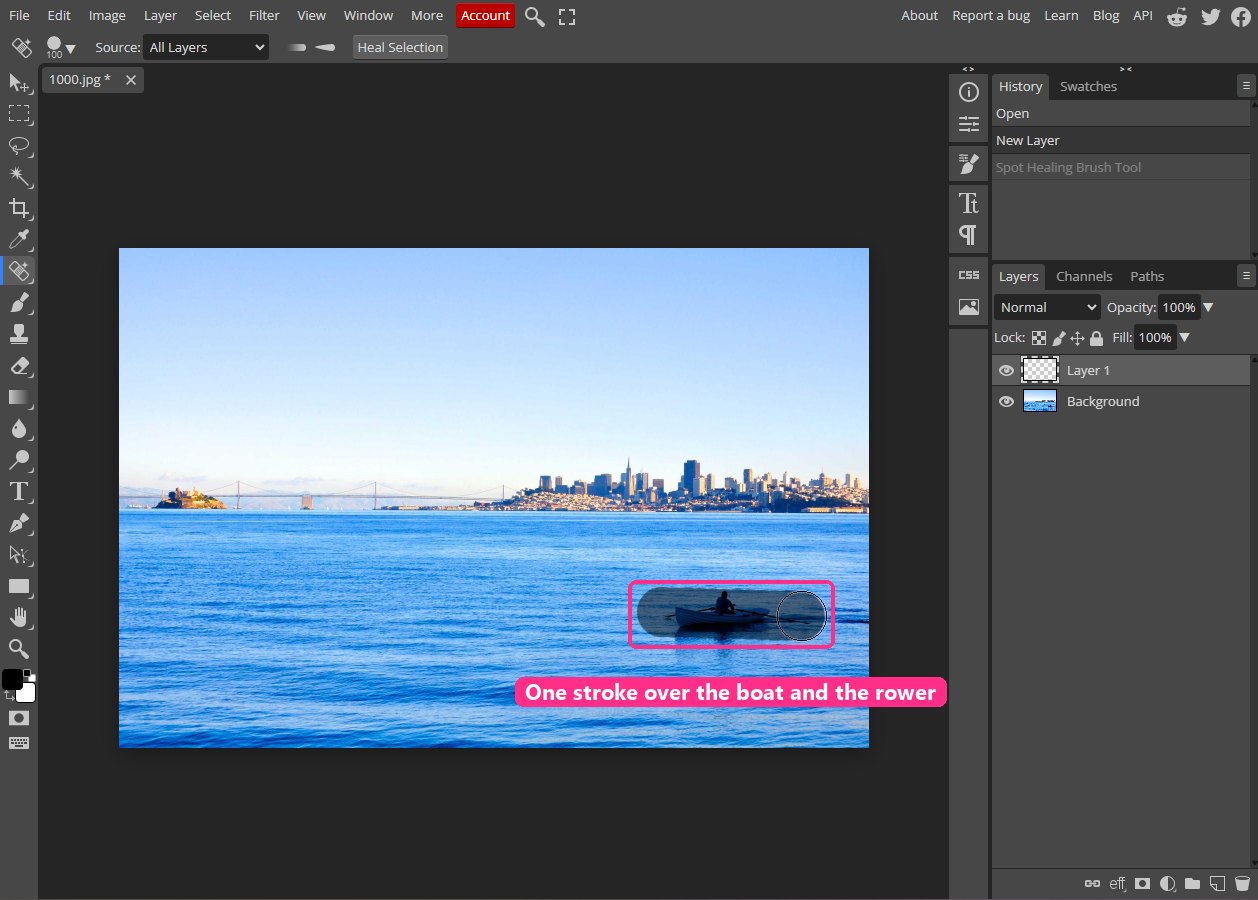
Set the brush a little larger than the object's height with the ] key ([ makes it smaller). Then paint a single stroke that covers the whole object, including its shadow or reflection. Photoshop shows the area you painted as a dark overlay while the mouse button is down.
One continuous stroke works better than many small dabs. Each dab is filled separately, and the joins between them are where repeated texture shows up.
Step 3: Clean up what the first stroke left behind
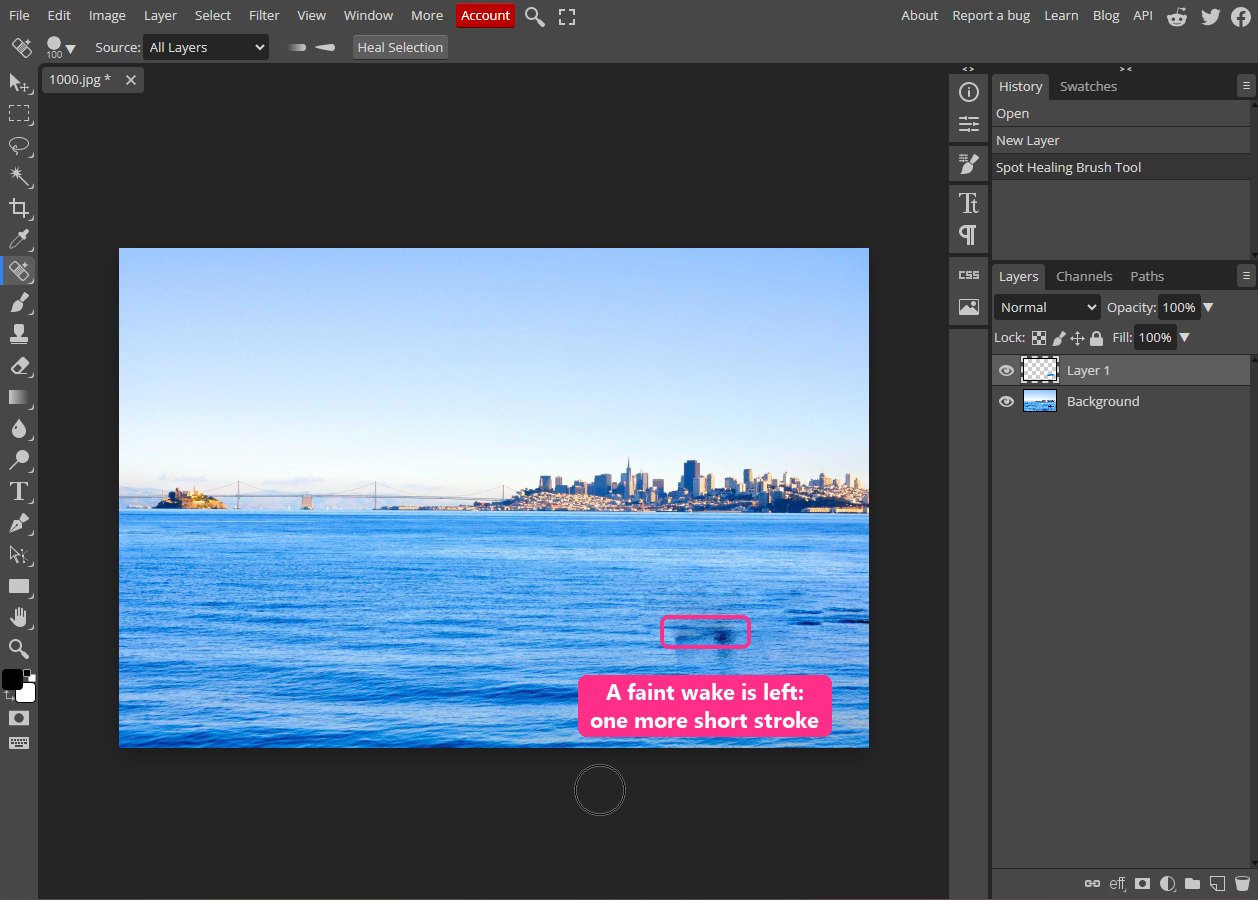
Release the mouse and Photoshop fills the stroke with texture from the surrounding area. Look closely before you move on. Here the boat itself is gone, but its dark wake sat just below the stroke and is still visible. Paint a second, shorter stroke over only that leftover.
Step 4: Check the result
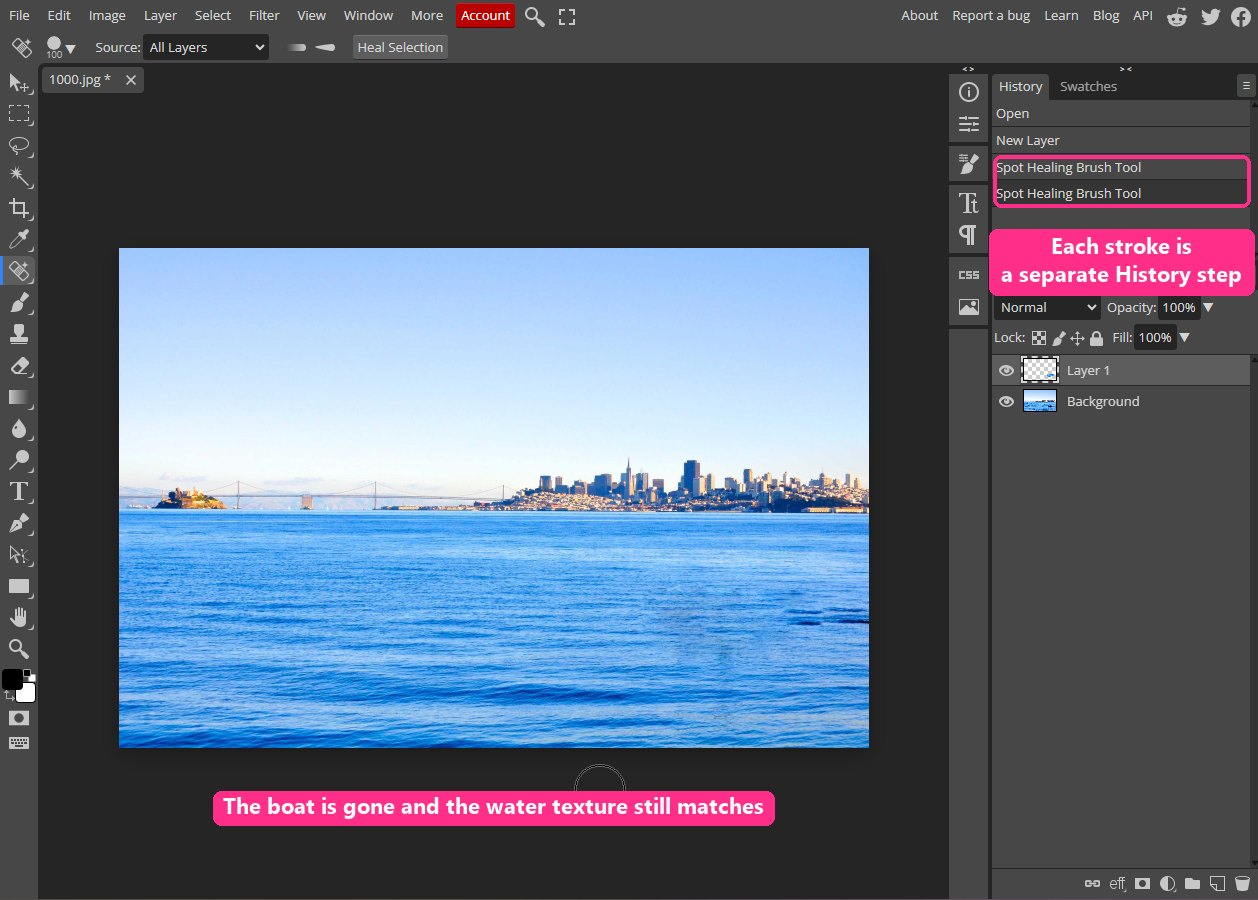
Zoom to 100% (Ctrl + 1, or Cmd + 1 on a Mac) and scan the area. Water, sky, grass and sand are forgiving because they have random texture. If you can still see a soft blotch, one more short stroke usually fixes it. To compare with the original, click the eye icon next to the repair layer.
Want a structured Photoshop course?
Tutorials like this one cover individual techniques. A complete Udemy course walks you from selections and layers through retouching and compositing in one structured path. Often on sale from $14.99.
Browse Photoshop courses on UdemyMethod 2: Content-Aware Fill for people and larger objects
A person is too large for one healing stroke, and they usually overlap something with structure: a road marking, a fence, the edge of a building. For these, select the person and let Content-Aware Fill rebuild the area, then fix the structure by hand.
Step 5: Duplicate the layer and select the person loosely
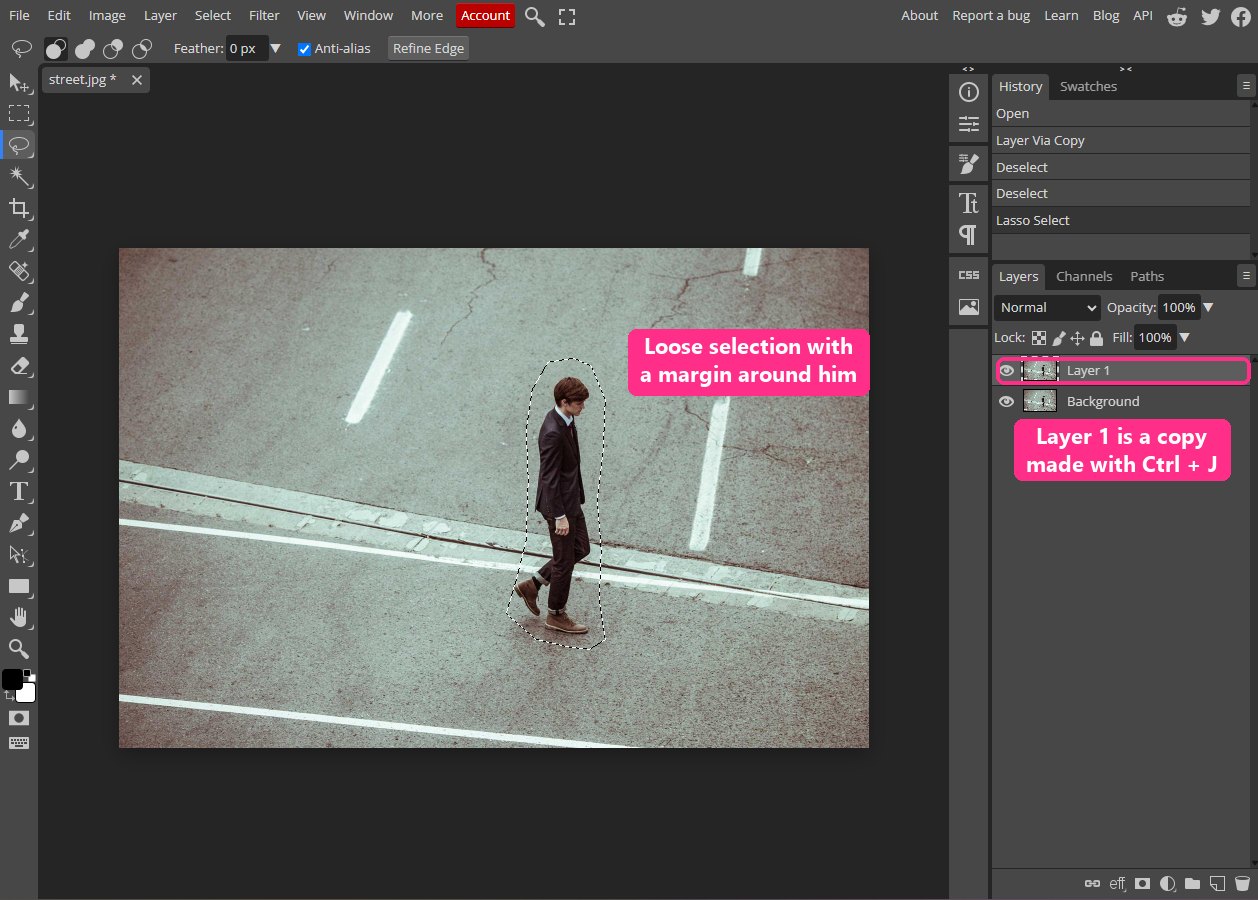
Press Ctrl + J (Cmd + J) to duplicate the photo. Content-Aware Fill needs pixels to work with, so it cannot run on an empty layer the way the Spot Healing Brush can.
Pick the Lasso Tool (L) and draw a loose selection around the person, leaving a small margin of background all the way round. Include their shadow. A tight selection that clips the edge of a shoe or a strand of hair leaves a ghost outline after the fill.
Step 6: Run Edit > Fill with Content-Aware
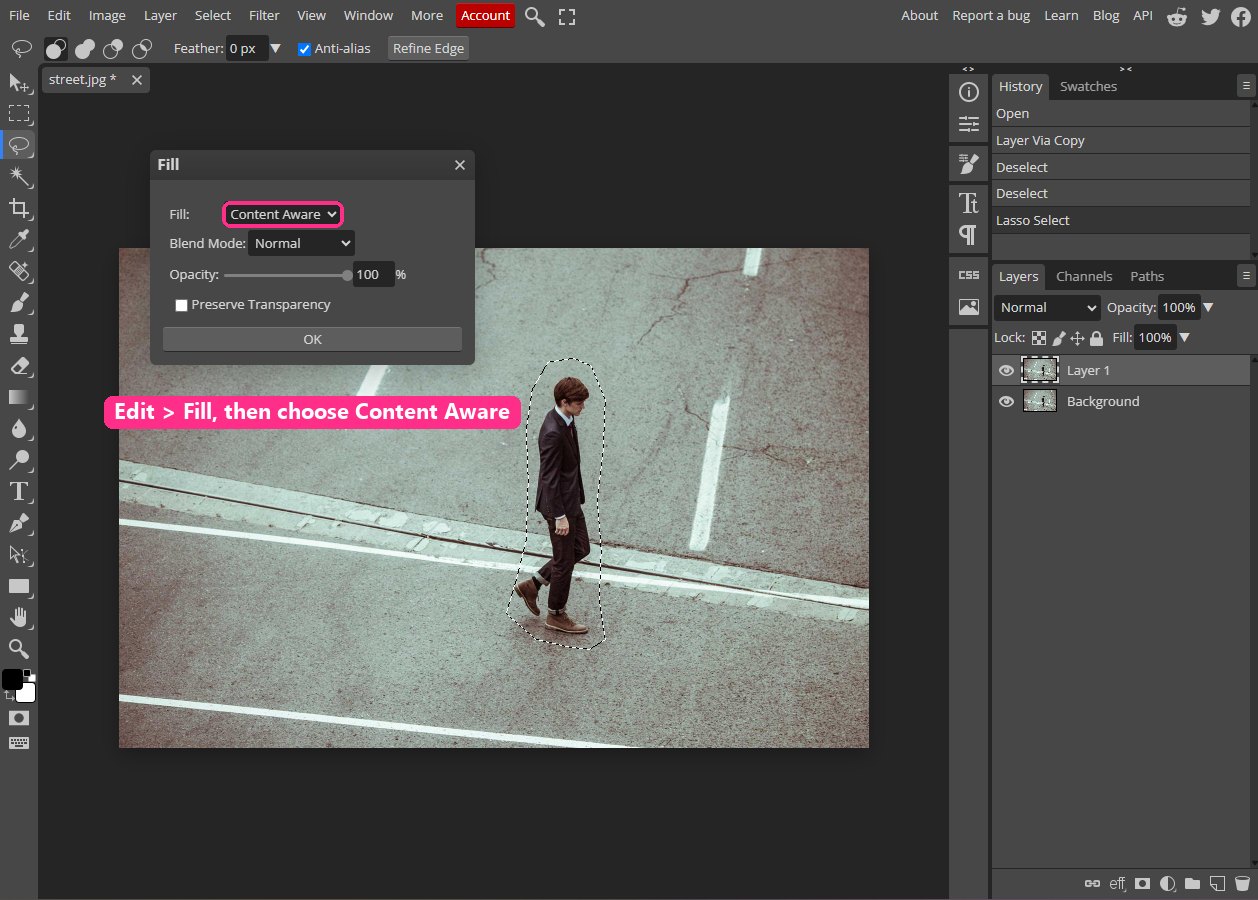
Go to Edit > Fill (Shift + F5). Set Contents to Content-Aware, leave Color Adaptation ticked, and click OK. Press Ctrl + D (Cmd + D) to deselect.
Photoshop also has a dedicated Edit > Content-Aware Fill workspace. It shows a green overlay of the area Photoshop will copy from, and you can paint that overlay away from parts of the photo you do not want sampled, such as a second person. Try it when the quick fill pulls in the wrong texture.
Using Photopea? The Fill dialog has the same option, labelled Content Aware, as shown above. There is no separate Content-Aware Fill workspace.
Step 7: Inspect the edges of the fill
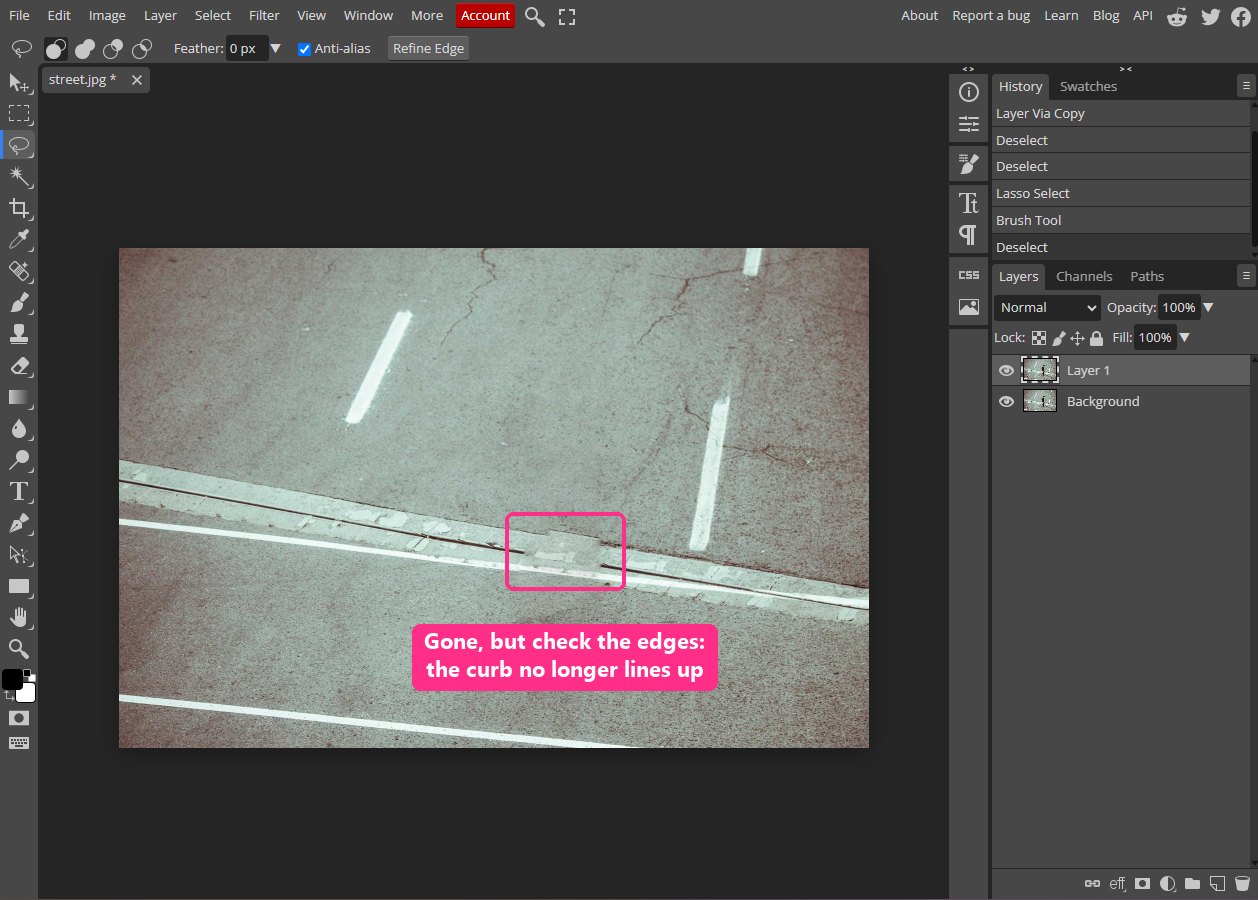
The person is gone, and the asphalt looks convincing. The curb does not. Content-Aware Fill copies texture well, but it does not understand that the curb, its groove and the white line are straight lines that should continue through the gap. You can see a block of pale curb where the groove breaks off.
This is normal. Almost every removal over structure needs a minute of manual repair, and that is the job of the Clone Stamp.
Step 8: Repair straight lines with the Clone Stamp
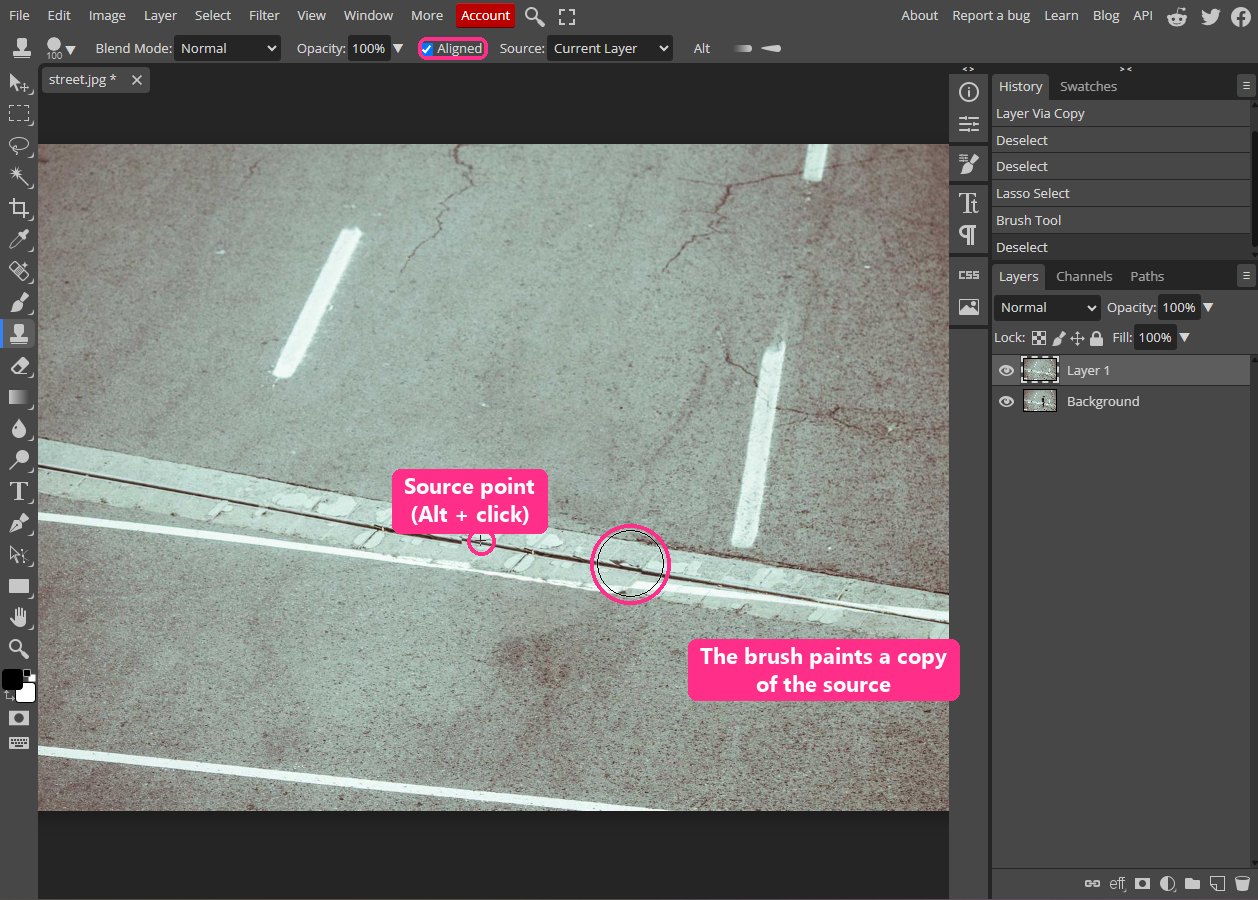
Zoom in on the problem area and select the Clone Stamp (S). Tick Aligned in the options bar. Hold Alt (Option on a Mac) and click on an intact part of the curb, further along the same line. Then release Alt and paint along the broken section, following the direction of the curb.
The crosshair shows where Photoshop is copying from; the brush circle shows where it paints. Because the source sits on the same straight line, the groove, the curb edge and the white line all continue at the right angle. Use a soft brush slightly taller than the curb so the repair blends at its edges.
Step 9: Finish with the Spot Healing Brush
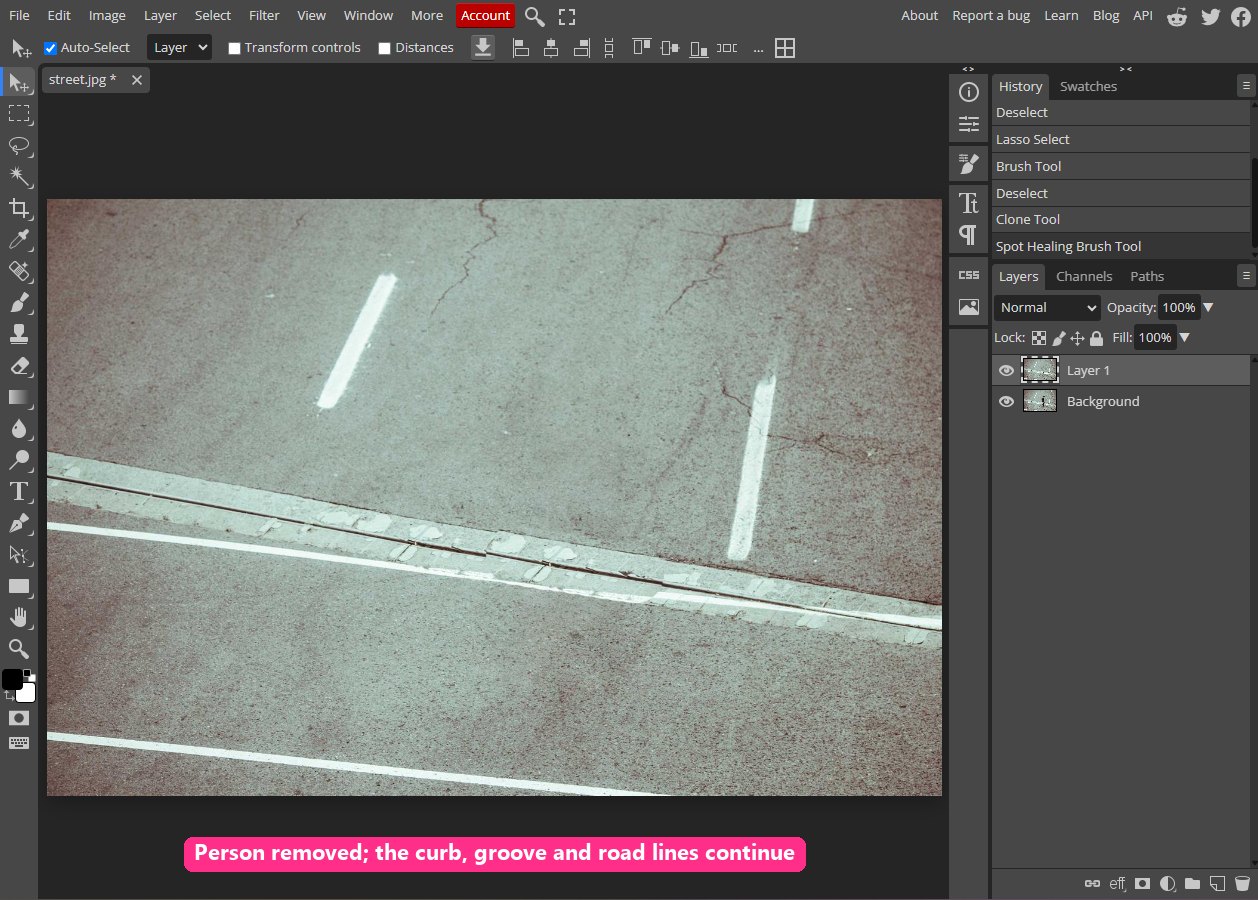
Look for anything that still gives the edit away. Here, the fill had left a reddish blotch on the road where his feet had been, so a single Spot Healing stroke blended it into the asphalt. Then zoom out to fit the screen (Ctrl + 0) and look at the whole photo for a few seconds. Repeated patterns are easier to spot at full view than at 200%.
Newer one-click options in Photoshop
Recent versions of Photoshop add two more tools for the same job. The Remove Tool, in the same slot as the Spot Healing Brush, works like a smarter healing brush: paint over the object and Photoshop uses AI to rebuild what was behind it. Adobe built it for larger objects and busier backgrounds than the Spot Healing Brush can handle. Generative Fill works from a selection: select the object, click Generative Fill in the Contextual Task Bar and leave the prompt empty to remove it. Generative Fill uses Adobe's generative credits and an internet connection.
Neither replaces the manual methods above. When the AI result is close but not right, the Clone Stamp and Spot Healing Brush are still how you finish the job, and they work in any version of Photoshop as well as in free editors such as Photopea. If you only need to cut a subject out rather than remove one, see how to remove a background instead.
Pro tip: borrow texture from the same distance
Texture gets finer as it recedes into the distance. Waves, cobblestones and grass all look smaller near the horizon than near the camera. When you set a Clone Stamp source, pick a point at the same distance from the camera as the area you are repairing, usually to its left or right rather than above or below it. Copying near texture into a far area is the most common reason a repair looks pasted on.
Which tool to use when
Use the Spot Healing Brush for anything small on a random background: dust spots, birds, distant boats, litter on grass, blemishes on skin. It is the fastest option and needs no selection.
Use Content-Aware Fill for anything larger, such as people, cars, signs and power poles. Expect to clean up after it wherever lines or patterns run behind the object.
Use the Clone Stamp for structure: straight edges, repeating patterns, tiles, brickwork and horizons. It is the most manual tool and the most predictable, because it copies exactly what you point it at.
The Patch Tool sits between them. Draw around the object, then drag the selection to a clean area you want to copy from, and Photoshop blends the copy into its new surroundings. It is useful when you want to choose the source yourself but still want the edges blended automatically.
Common mistakes
Working on the original layer. Heal onto an empty layer or a duplicate so every repair can be erased or toned down later. If a fill is slightly too strong, lowering the repair layer's opacity to 80 or 90 percent sometimes hides a pattern.
Selections that are too tight. Content-Aware Fill blends from the edge of the selection inwards. If the selection cuts through the object, the remaining sliver gets copied into the fill. Leave a margin.
Ignoring shadows and reflections. A person removed from a sunny street but still casting a shadow is the most common giveaway. Include the shadow in the same selection, or heal it afterwards.
Cloning from the same spot over and over. Repeated identical clumps of grass or identical waves make a pattern the eye picks up instantly. Alt-click a new source point every few strokes.
Frequently asked questions
Can Photoshop remove a person from a photo automatically?
Mostly. The Remove Tool and Generative Fill in recent versions can remove a person in one step, and Content-Aware Fill does a good job on simple backgrounds. On busy backgrounds, plan on a few minutes of Clone Stamp cleanup whichever tool you start with.
Why does Content-Aware Fill copy the wrong thing into my selection?
It samples from the area around the selection. If that area contains another person or object, it may copy part of it. Open Edit > Content-Aware Fill and paint the green sampling overlay off the parts you do not want used.
Does this work in free editors?
Yes. Every screenshot in this tutorial was taken in Photopea, which is free and runs in a browser. GIMP has a Heal tool and a Clone tool that work the same way, and the free Affinity app includes an Inpainting Brush. See our guide to Photoshop alternatives for how they compare.
Why does my healed area look blurry?
The brush was probably much larger than the object, so Photoshop rebuilt a big area from averaged texture. Use a brush just larger than the object, and heal large areas in several passes rather than one huge stroke.
Related tutorials


Get the Photoshop shortcuts cheat sheet
Every shortcut you'll actually use, on a single printable page.