How to Change the Color of an Object in Photoshop
Showing a product in another colorway, matching a jacket to a brand color, trying a different paint color on a door: changing the color of one object is a job Photoshop does well, as long as the change stays on the object. The usual giveaway is spill, a faint tint of the new color on the wall, floor or skin around the object.
This tutorial uses a Hue/Saturation adjustment layer, which is non-destructive (you can change the color again at any time) and works on most colored objects. You will turn a red tricycle teal, see where the spill comes from, and remove it with one click. Further down are the methods for matching an exact color and for recoloring white, grey or black objects, which Hue/Saturation cannot handle on its own.
The screenshots in this tutorial were taken in Photopea, a free browser-based editor whose tools and shortcuts work much like Photoshop's. Demo photo by Florian Klauer on Unsplash.
Step 1: Draw a loose selection around the object
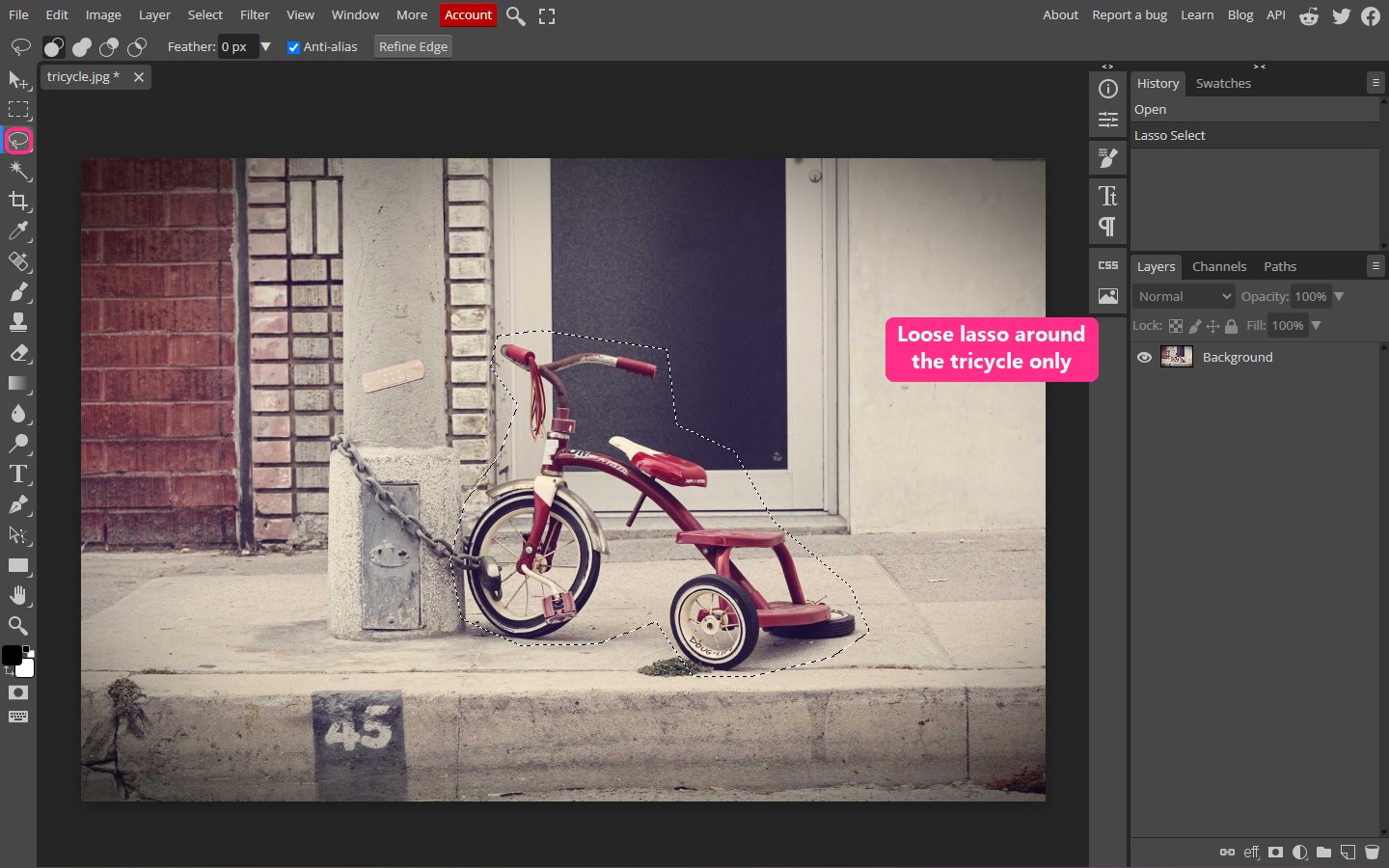
Select the Lasso Tool (L) and draw around the object with some room to spare. It does not need to follow the edges. Its only job is to keep the adjustment away from other things in the photo that share the object's color. In this photo, that is the red brick wall on the left: a red-only adjustment applied to the whole image would turn the bricks teal too.
If nothing else in the photo shares the object's color, you can skip the selection entirely.
Step 2: Add a Hue/Saturation adjustment layer
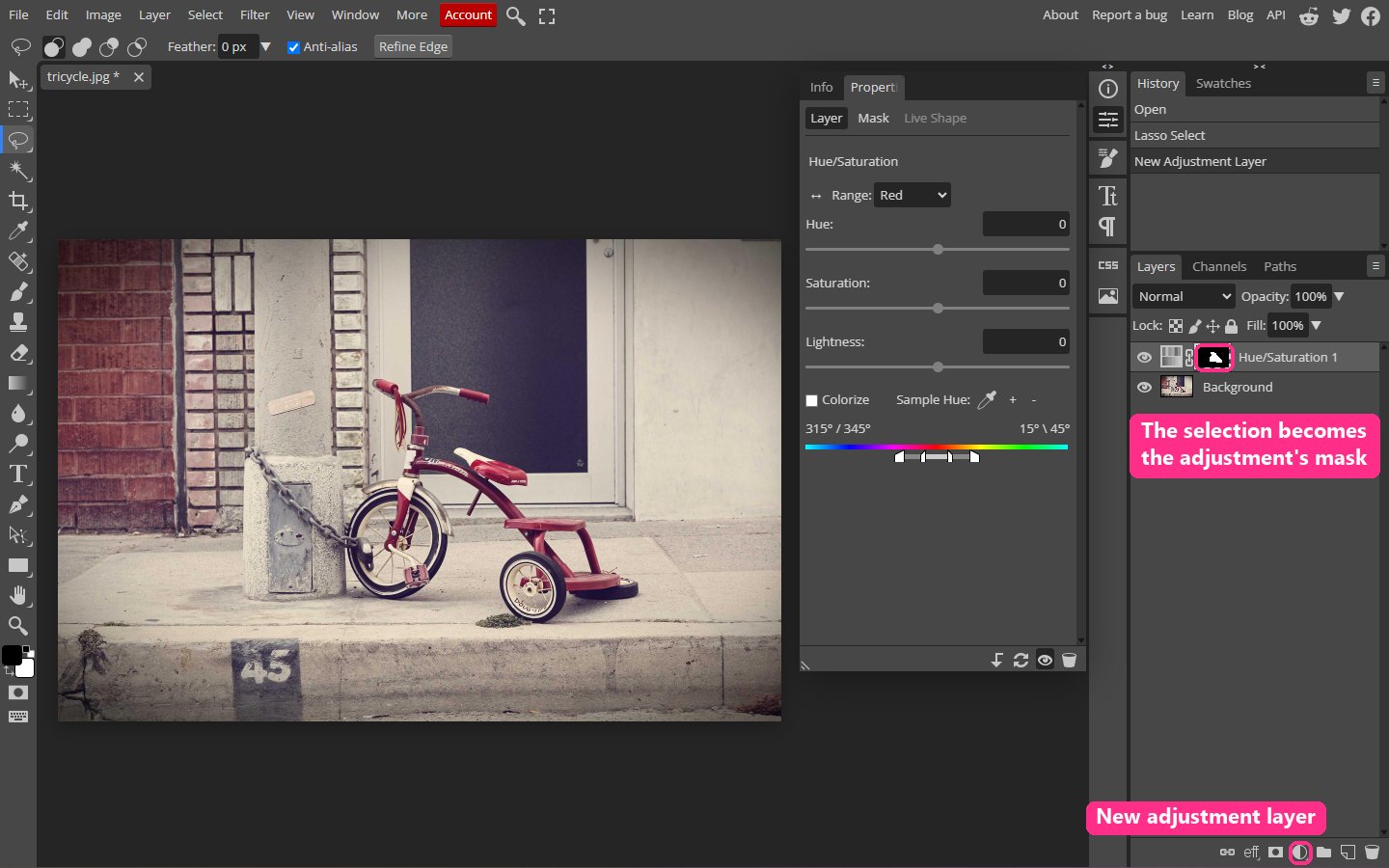
Click the Create new fill or adjustment layer button (the half-black circle) at the bottom of the Layers panel and choose Hue/Saturation. You can also use Layer > New Adjustment Layer > Hue/Saturation.
Because a selection was active, Photoshop turns it into the adjustment layer's mask. White in the mask thumbnail is where the adjustment applies; black is protected. The Properties panel opens with the Hue, Saturation and Lightness sliders.
Step 3: Choose the color range and move the Hue slider
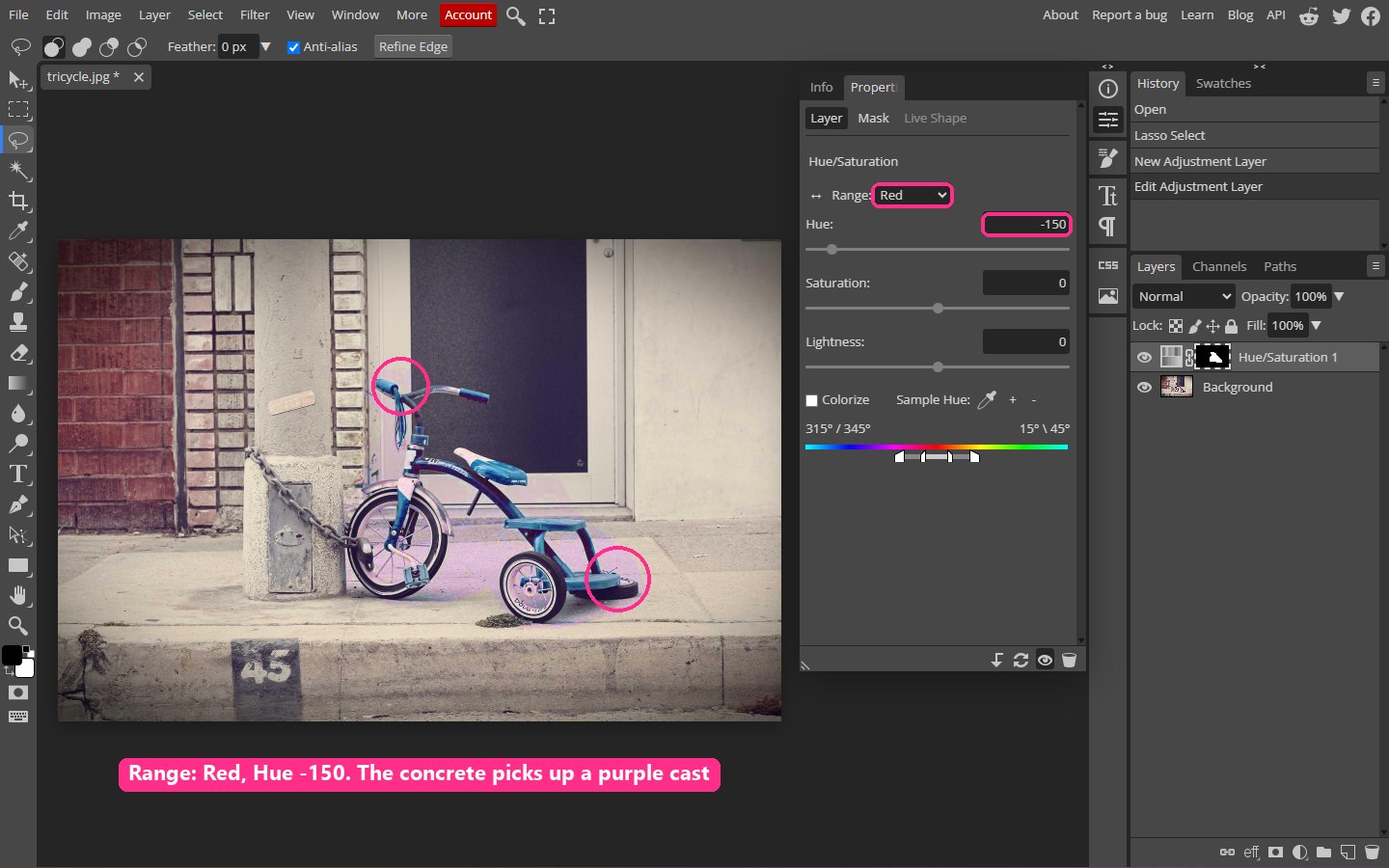
The menu at the top of the Properties panel says Master, which shifts every color. Change it to the object's color, here Reds, so only red pixels inside the mask change. Then drag Hue. Moving it about 150 to 180 points in either direction gives the opposite color; we used -150 to turn red into teal.
The tricycle is teal, but look at the concrete and the door around it: they have turned purple. That is spill. The concrete is not grey, it has a faint warm tint, and the default Reds range is wide enough to catch it.
Using Photopea? The menu is labelled Range and the choice is Red, as shown above.
Step 4: Sample the object's color to remove the spill
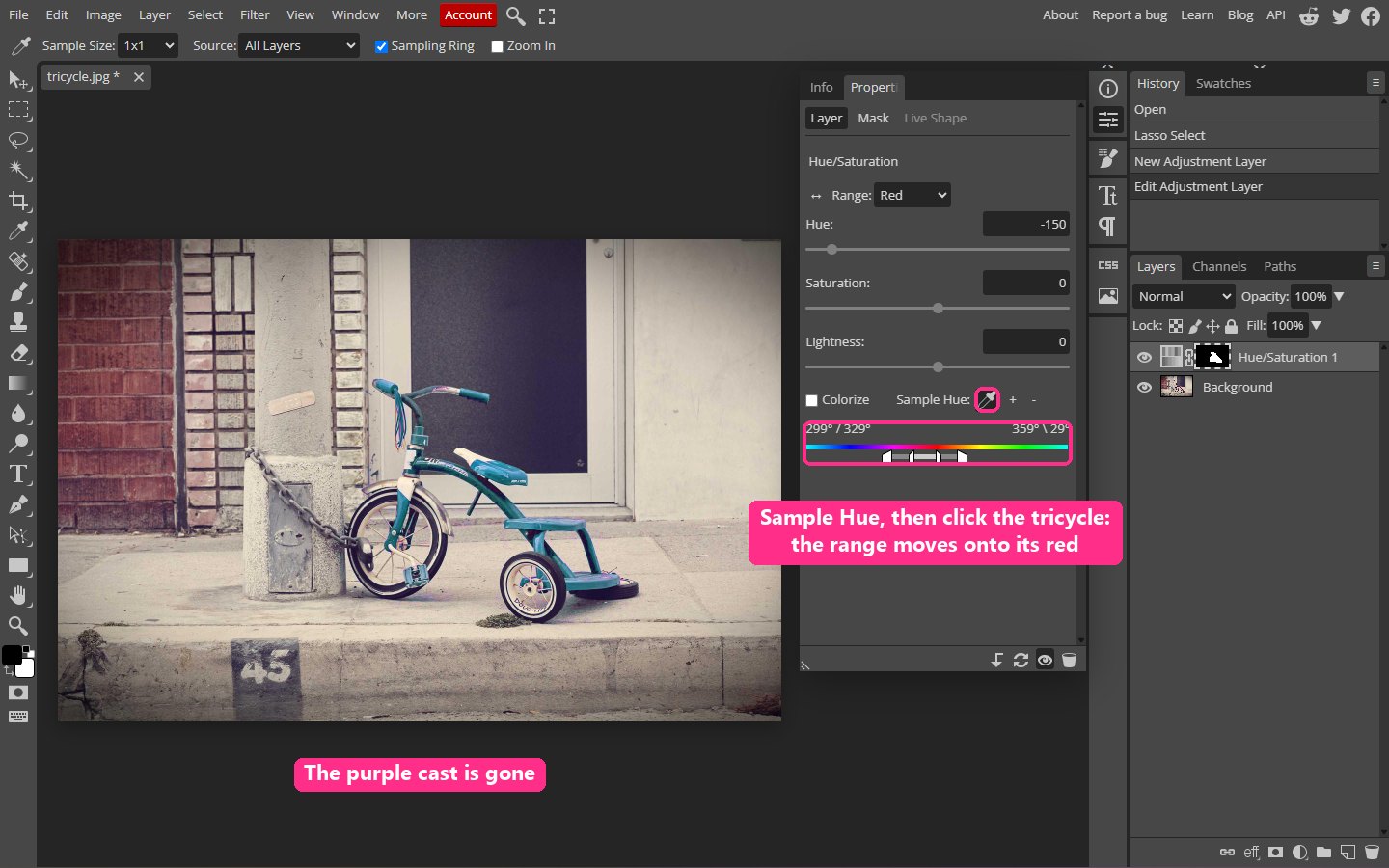
With Reds still chosen, pick the Eyedropper in the Properties panel and click a solid, mid-tone part of the object, such as the frame rather than a highlight. Photoshop re-centers the color range on that exact red, and the color bar at the bottom of the panel shows the new range. The faint warm tint of the concrete now falls outside it, and the purple cast disappears.
If parts of the object still look half-changed, click them with the Add to Sample eyedropper (the one with a plus sign) to widen the range. If something nearby still shifts, use Subtract from Sample on it.
Using Photopea? The eyedropper is labelled Sample Hue, with + and - buttons next to it for adding and subtracting.
Step 5: Fine-tune and compare before and after
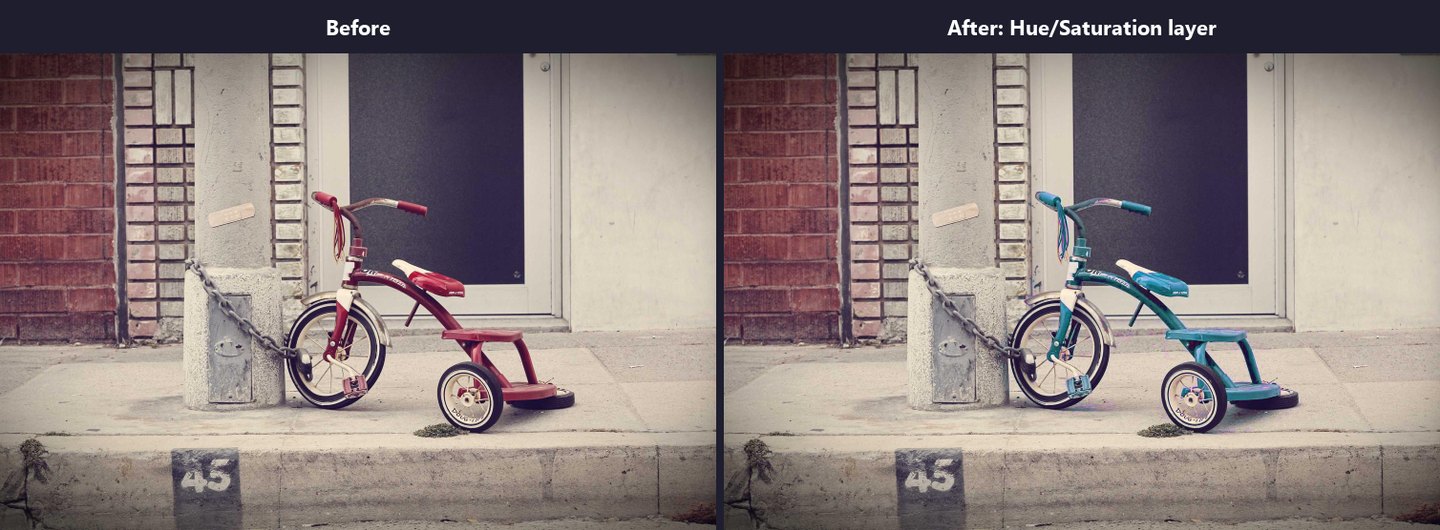
Adjust Saturation and Lightness to suit the new color. Some hues look naturally brighter or duller than others, so a yellow usually needs less Lightness and a blue more Saturation to look real. Keep Lightness changes small: past about 20 points either way the object starts to look painted on.
Click the eye icon on the adjustment layer to compare before and after. Since the change lives on its own layer, you can come back and pick a different color at any time, or duplicate the layer to try several colorways.
Want a structured Photoshop course?
Tutorials like this one cover individual techniques. A complete Udemy course walks you from selections and layers through retouching and compositing in one structured path. Often on sale from $14.99.
Browse Photoshop courses on UdemyChanging to an exact color, such as a brand color
Hue/Saturation moves colors around the color wheel, which makes it hard to land on a specific value like a brand's hex code. For an exact color, use a Solid Color fill layer instead:
Make a precise selection of the object (Select > Subject or the Object Selection Tool are the quickest starting points in Photoshop). Choose Layer > New Fill Layer > Solid Color and enter the hex value. Set the fill layer's blend mode to Color. The Color blend mode keeps the object's original light and shadow and replaces only its hue and saturation, so folds, reflections and texture survive.
This method needs a tighter mask than the Hue/Saturation method, because a Color-mode fill tints everything under the mask, including grey concrete. Zoom in and paint the mask black wherever it overlaps the background. Our layer masks guide covers mask painting in detail.
Changing white, grey or black objects
Moving the Hue slider does nothing to a white shirt or a black car, because they have almost no color for the slider to rotate. You have to add color rather than shift it.
For white or light grey objects, tick Colorize in the Hue/Saturation panel and choose a hue and saturation, or use the Solid Color fill layer above in Color or Multiply blend mode. Lower Lightness slightly, because a pure white object cannot hold a saturated color without looking flat.
For black objects, color has to come from the highlights and reflections. A Solid Color fill layer in Color mode tints them, and a Curves or Levels adjustment clipped to the same mask lifts the shadows so the new color shows. Recoloring black convincingly is difficult; a dark navy or burgundy reads more naturally than a bright color.
Pro tip: check the edges at 200%
Spill hides at the edges, where the object's color blends into the background over a few pixels. Zoom to 200% and follow the outline of the object. If you see a thin rim of the old color, click it with the Add to Sample eyedropper. If you see a rim of the new color on the background, paint that part of the mask black with a small soft brush.
Other ways to change a color in Photoshop
Image > Adjustments > Replace Color combines a color selection and a hue shift in one dialog. It is quick, but it changes the pixels directly instead of working on an adjustment layer, so duplicate your layer first.
Select > Color Range can build the mask for you by clicking the object's color. It works well on bright, saturated objects. On faded or muted colors, like the vintage paint on this tricycle, it tends to select the object only partially, which leaves a mix of the old and new colors. A loose lasso plus a sampled hue range, as in the steps above, is more reliable for those.
Common mistakes
Leaving the range on Master. Master shifts every color under the mask, so shadows, skin and background all change along with the object.
Sampling a highlight. Highlights are pale and low in saturation. Sampling one centers the range on the wrong color and leaves most of the object unchanged. Click a mid-tone area.
Pushing Saturation too far. Real objects rarely reach full saturation. If the new color glows more than anything else in the photo, it will look pasted on.
Frequently asked questions
How do I change the color of something without changing the rest of the photo?
Limit the adjustment twice: with a mask (the lasso in Step 1) to protect other areas, and with a color range (Steps 3 and 4) so only the object's color shifts inside the mask.
Can I change a color back later?
Yes. Double-click the adjustment layer's thumbnail to reopen its settings. Nothing is baked into the photo until you flatten it.
Why did my object turn grey instead of the new color?
The object was probably low in saturation to begin with. Raise Saturation in the same panel, or use Colorize or a Solid Color fill layer in Color blend mode.
Does this work in free editors?
Yes. Every screenshot here comes from Photopea, which is free in the browser. GIMP has a Hue-Saturation tool with per-color ranges as well. Our Photoshop alternatives guide compares the options.
Related tutorials
Get the Photoshop shortcuts cheat sheet
Every shortcut you'll actually use, on a single printable page.