How to Resize an Image in Photoshop Without Losing Quality
"Without losing quality" means different things depending on the direction. Making an image smaller always throws pixels away, but done properly it looks just as sharp at its new size. Changing the print size does not need to touch the pixels at all. Making an image larger is the hard case: no method can add back detail the photo never had, though some methods fake it far better than others.
This tutorial covers all three with the Image Size dialog, shows on a real photo what happens when you shrink an image and blow it back up, and ends with exporting a small file for a website or social media.
The screenshots in this tutorial were taken in Photopea, a free browser-based editor whose tools and shortcuts work much like Photoshop's. Demo photo by Isaak Dury on Unsplash.
Step 1: Open Image > Image Size
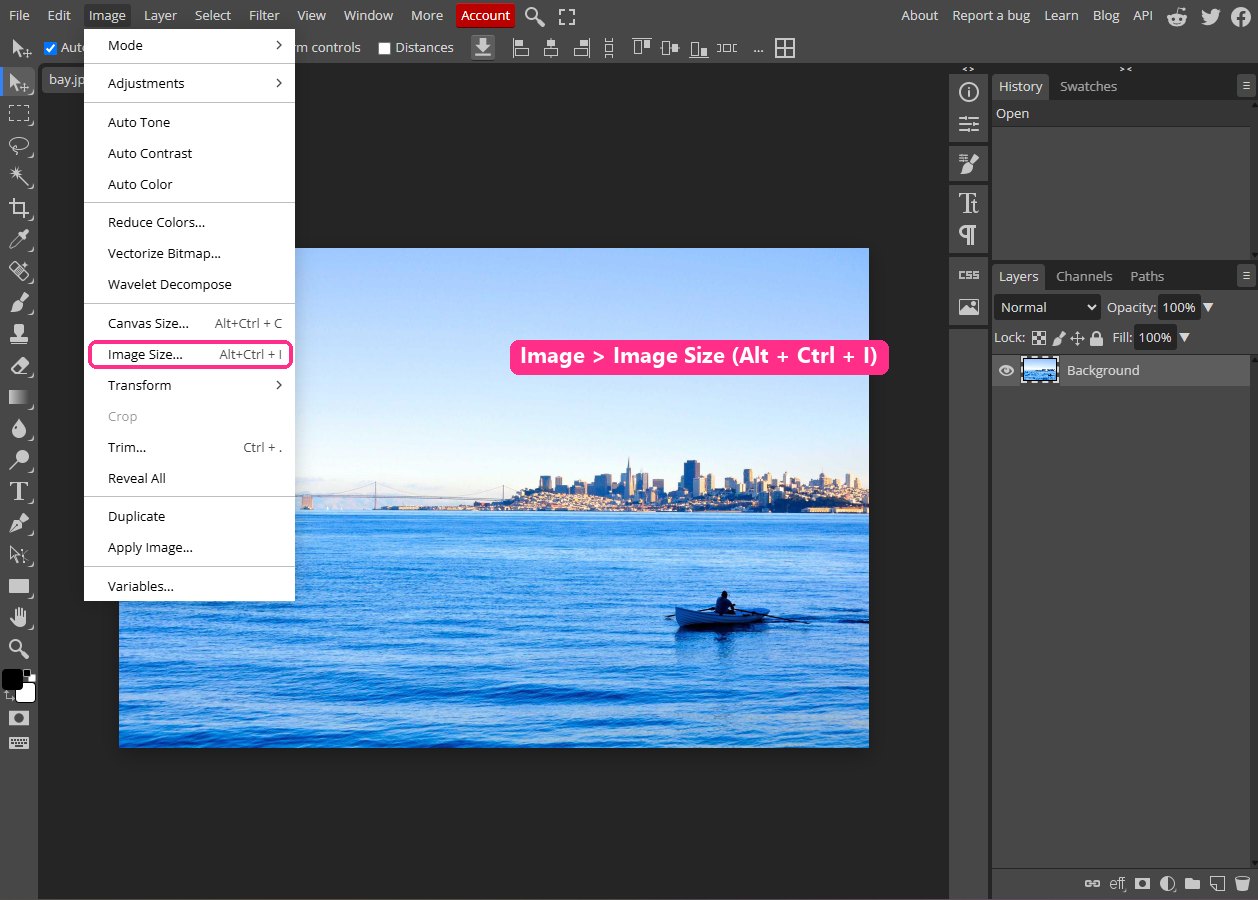
Go to Image > Image Size, or press Alt + Ctrl + I (Option + Cmd + I on a Mac). The dialog shows the image's size in pixels, its resolution, and a Resample checkbox. That checkbox decides everything: with Resample on, Photoshop changes the number of pixels; with it off, Photoshop only changes how large those pixels print.
Before you resize, save a copy or work on a duplicate (Image > Duplicate). Shrinking is permanent once you save over the original.
Step 2: Make the image smaller for the web
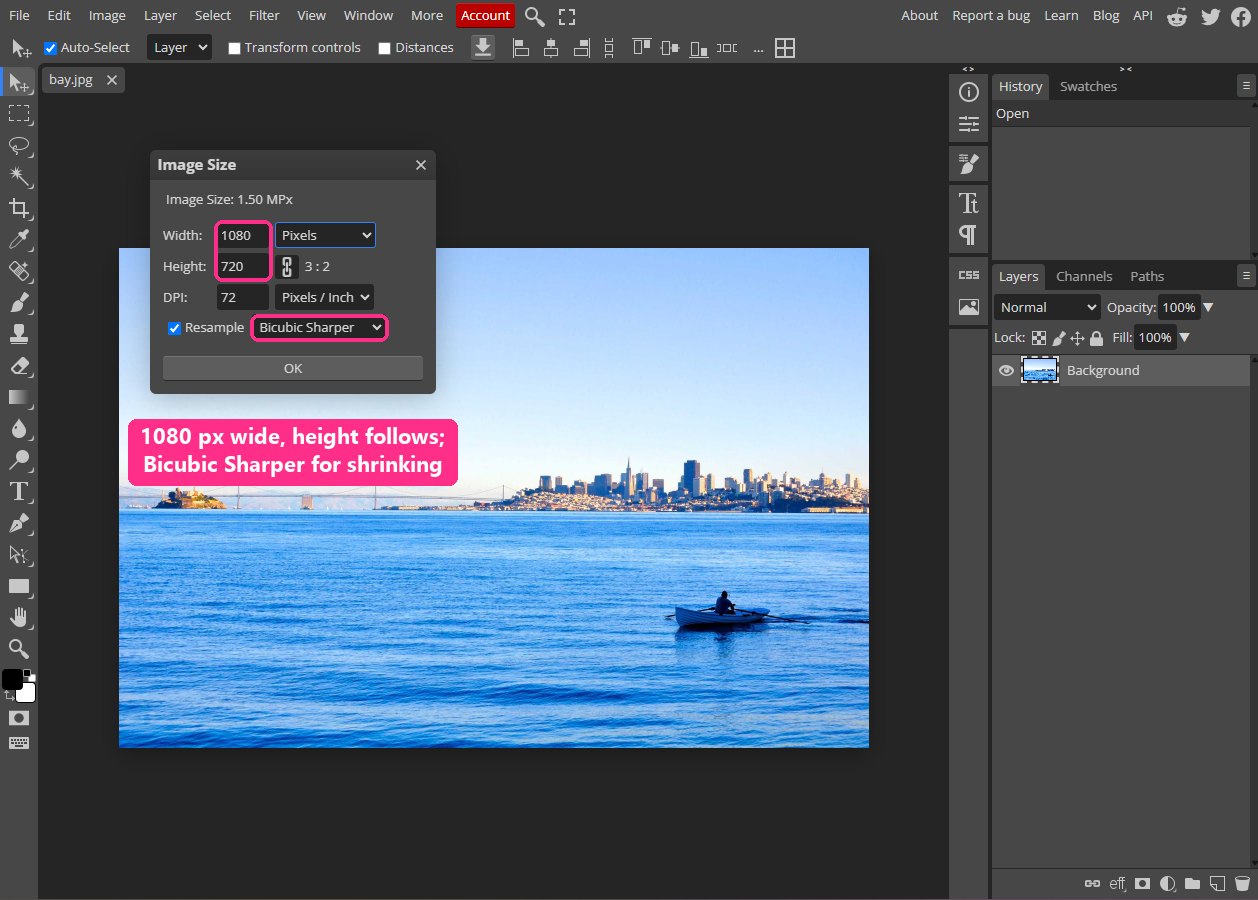
Leave Resample ticked and make sure the chain icon between Width and Height is linked, so the proportions stay the same. Set the unit to Pixels and type the width you need; the height follows. Here a 1500 x 1000 photo becomes 1080 x 720, a common width for social media posts.
For the resampling method, choose Bicubic Sharper (reduction). Shrinking softens fine detail slightly, and Bicubic Sharper compensates for that. Photoshop's default, Automatic, chooses a method based on whether you are reducing or enlarging and is a safe choice too; picking Bicubic Sharper yourself simply makes the choice explicit.
Step 3: Change the print size without resampling
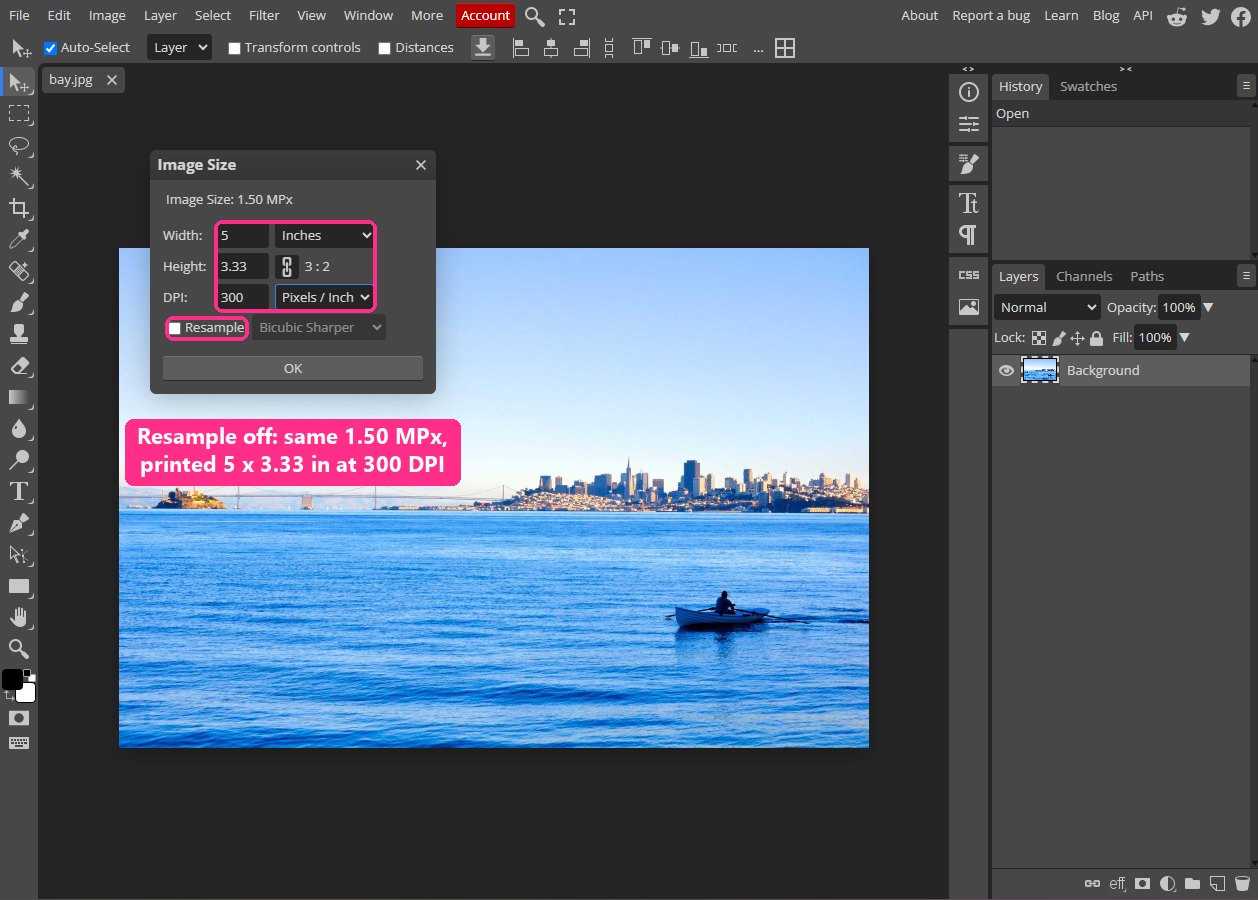
To get a photo ready for print, untick Resample first. Now Width, Height and Resolution are locked together: change one and the others follow, while the pixel count stays exactly the same. Set Resolution to 300 pixels per inch, the usual target for photo prints, and the dialog tells you how large the image will print at full quality. Our 1500 x 1000 photo comes out at 5 x 3.33 inches.
For a bigger print, you have two honest options: accept a lower resolution (around 150 ppi is fine for posters seen from a few feet away), or enlarge the image, which is Step 4. For anything shown on a screen, the resolution number does nothing at all. Only the pixel dimensions matter.
Using Photopea? Resolution is labelled DPI, as shown above. It does the same thing.
Step 4: Know what enlarging can and cannot do
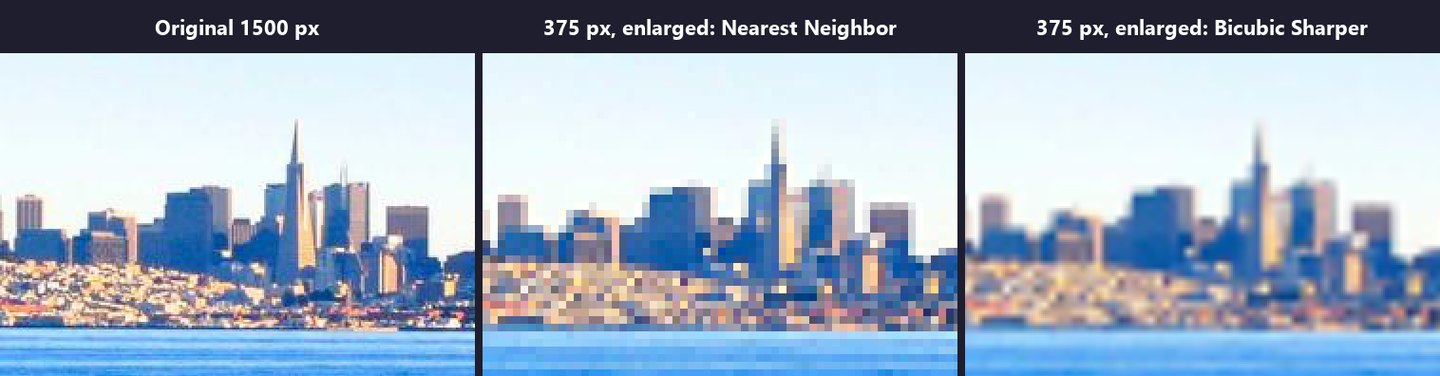
To show what resampling does, we shrank the photo to 375 pixels wide and then enlarged it back to 1500 pixels with two different methods. The crops above are the same part of the skyline at the same zoom.
Nearest Neighbor copies each pixel into a block, which makes the image visibly blocky. It is the right choice only for pixel art and screenshots of interfaces, where you want hard edges to stay hard. Bicubic Sharper blends between pixels, so the result is smooth but soft. Neither brings back the windows on the buildings. Once pixels are gone, no resampling method can recreate what was in them.
When you do need a larger image, start from the largest original you have and use Photoshop's best enlargement methods: Preserve Details 2.0 in the Resample menu, which keeps edges crisper than the bicubic options, or Super Resolution, found under Enhance when you open a photo in Camera Raw, which doubles the width and height using machine learning. Both make a 2x enlargement look good. Neither turns a thumbnail into a poster.
Using Photopea? Its Resample menu offers Nearest Neighbor, Bilinear and Bicubic Sharper, the methods used for the comparison above. Preserve Details 2.0 and Super Resolution are Photoshop features.
Want a structured Photoshop course?
Tutorials like this one cover individual techniques. A complete Udemy course walks you from selections and layers through retouching and compositing in one structured path. Often on sale from $14.99.
Browse Photoshop courses on UdemyStep 5: Export a small file for the web
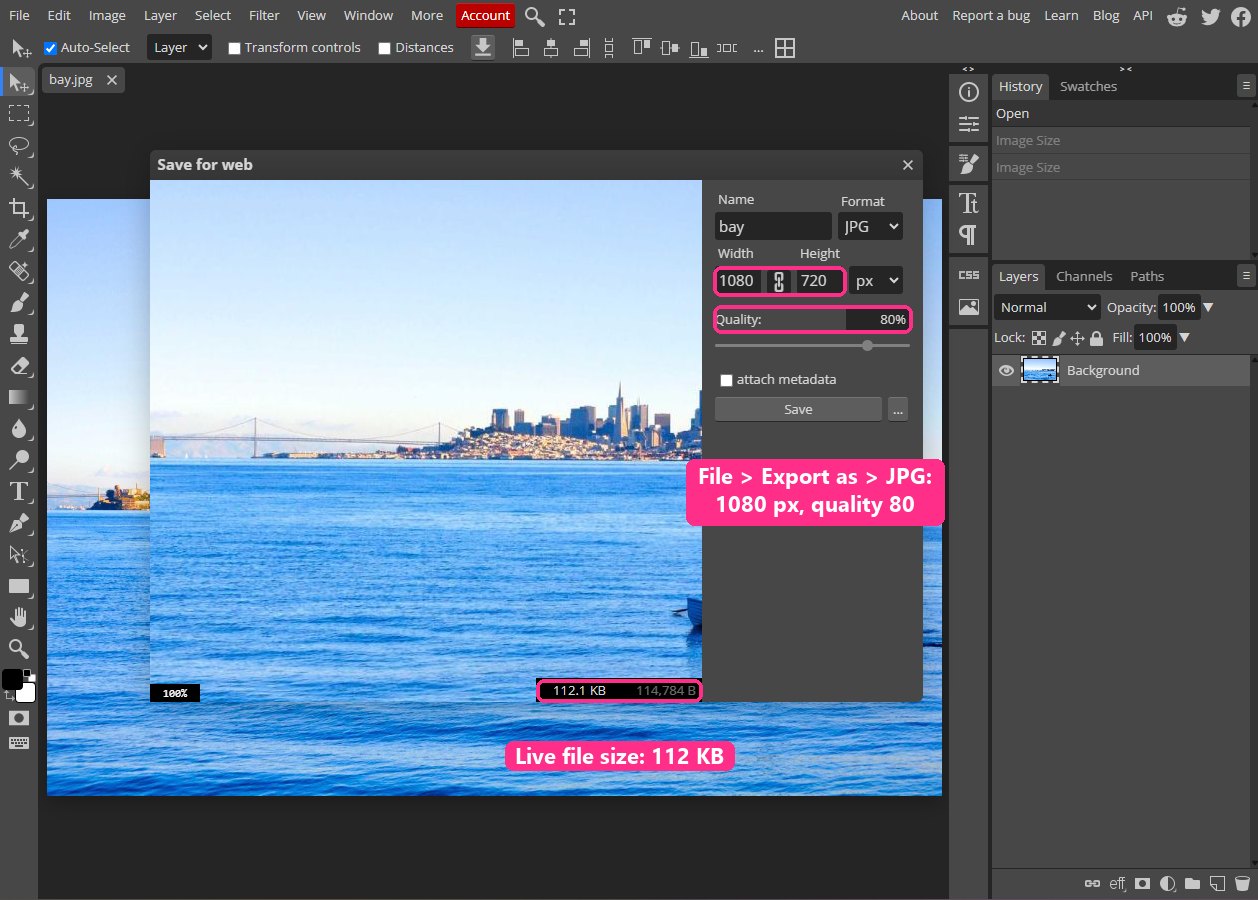
File size depends on pixel dimensions and on compression. For websites and social media, use File > Export > Export As (Alt + Shift + Ctrl + W). Choose JPG for photos or PNG for graphics with flat colors and text, set the size, and set the quality. The dialog shows the resulting file size before you save.
A JPG quality of 70 to 85 is the usual range for photos on the web: below that, blocky compression artifacts start to appear in skies and smooth gradients; above it, the file grows much faster than the visible quality. Our 1080 x 720 export at quality 80 is 112 KB.
Using Photopea? Go to File > Export as > JPG. The dialog that opens, titled Save for web, has the same size and quality controls and shows the file size live.
Resizing a single layer without losing quality
The Image Size dialog resizes the whole document. To resize one layer, such as a logo or a pasted photo, you use Free Transform (Ctrl + T). Here there is a trap: if you scale a normal layer down and later scale it back up, Photoshop has already thrown away the extra pixels, and the layer comes back blurry.
Right-click the layer and choose Convert to Smart Object before transforming it. A Smart Object keeps the original pixels inside it, so you can scale it down, up and down again without any loss, as long as you never go above its original size.
Pro tip: resize last, and sharpen after
Do your retouching and color work at full size, and resize as the final step, ideally on a duplicate. A small amount of sharpening after the resize (Filter > Sharpen > Unsharp Mask, around 50 percent with a radius under 1 pixel for web sizes) restores the crispness that any reduction removes. Sharpening before resizing gets averaged away.
Common sizes worth remembering
Website images: as wide as they will be displayed, doubled for sharp high-resolution screens. A blog image shown 800 pixels wide looks best uploaded at 1600 pixels.
Social media: 1080 pixels wide covers most feeds. Platforms recompress uploads, so starting from a clean, correctly sized file gives their compression less to damage.
Prints: multiply the print size in inches by 300 to get the pixels you need. A 6 x 4 inch print needs 1800 x 1200 pixels; an 8 x 10 needs 2400 x 3000.
Common mistakes
Changing resolution with Resample ticked. Typing 300 into Resolution while Resample is on makes Photoshop invent pixels to keep the same print size. If you only wanted the print size to change, untick Resample first.
Unlinking width and height. If the chain is off, typing a new width stretches or squashes the image. Relink it and start again from the original size.
Resizing in many small steps. Every resample softens the image a little. Go from the original to the final size in one step.
Saving over the original. Keep the full-size file. You can always make another small copy, but you cannot get the detail back from a small one.
Frequently asked questions
How do I make an image bigger without it getting blurry?
Up to about 2x, use Preserve Details 2.0 or Camera Raw's Super Resolution, then sharpen lightly. Beyond that, some softness is unavoidable, because the detail was never captured. A larger original is the only real fix.
What does DPI or PPI actually change?
Only how large the image prints. A 3000 pixel wide photo looks exactly the same on screen at 72 or 300 ppi; at 300 ppi it prints 10 inches wide, and at 72 ppi it would print about 42 inches wide.
What is the best resampling method?
For reductions, Bicubic Sharper; for enlargements in Photoshop, Preserve Details 2.0. Automatic, the default, chooses between methods based on the direction of the resize and is fine if you do not want to think about it. Choose Nearest Neighbor only for pixel art or interface screenshots.
Can I resize images for free?
Yes. Every screenshot in this tutorial comes from Photopea, a free browser-based editor with the same Image Size dialog. Our Photoshop alternatives guide covers other free editors.
Related tutorials
Get the Photoshop shortcuts cheat sheet
Every shortcut you'll actually use, on a single printable page.